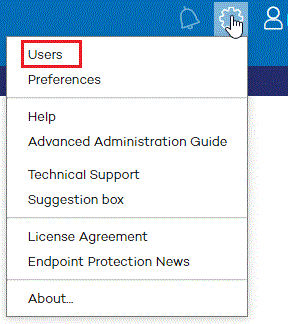
If the default user provided by the solution does not adapt to the protection needs of your network, you can create new users and assign different types of permissions to them, depending on what you want each user to manage.
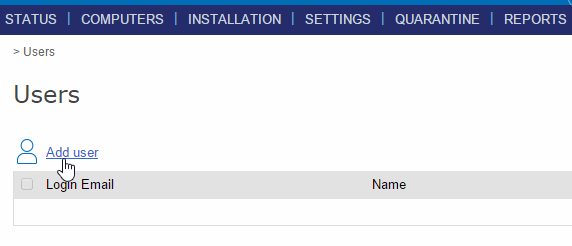
In the main console window, click Users.
The Users window shows three columns: Login Email, Name and Permissions. As you create users, these will appear in the list, along with the type of permissions that you have given them.
Follow these steps to create a user:
Enter the Login Email and confirm it.
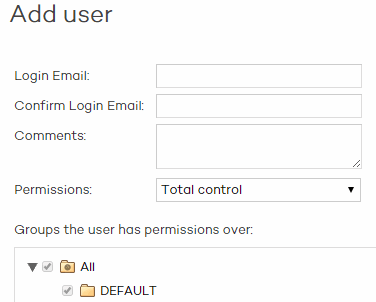
You can add more information in the Comments section.
Select the permission to assign to the user. For more information on permissions, refer to the Types of permissions section.
In the case of users with Security administrator or Monitoring permissions, select the group/subgroup or groups/subgroups they can act upon. Users with Total control permissions can act on all groups.
Click Add. A message will be displayed informing you that an email message has been sent to the address specified when creating the user.
Once the user has been created, it will appear in the list available in the Users section.